
Using Network Logs (HAR) for Debugging
A Network Log (HAR) (HTTP Archive file) is a log of network activity between a browser and a server. It captures detailed information about requests and responses, including headers, payloads, timings, and more. In CheckView, you can download a Network Log (HAR) for each test run to debug issues or provide additional context to CheckView support for troubleshooting.
What is a Network Log (HAR)?
A Network Log (HAR) is a JSON-formatted file that records network requests made during a browser session, including:
- Request and response headers.
- HTTP methods (e.g., GET, POST).
- Status codes (e.g., 200 OK, 404 Not Found).
- Timing information (e.g., DNS lookup time, connection time).
Network Logs (HAR) are essential for debugging web application issues such as:
- Slow page load times.
- Missing or incorrect server responses.
- JavaScript errors impacting test flows.
- Redirects or blocked resources.
Downloading a Network Log (HAR)
- Run a Test: Execute a scheduled or manual test in CheckView.
- Navigate to the Test Results page for the completed test.
- Save the file to your local device.
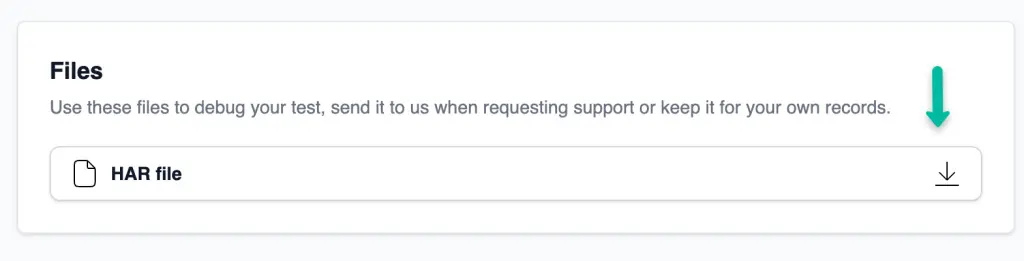
Debugging a Network Log (HAR)
To analyze a Network Log (HAR), you can use tools like Google HAR Analyzer. Here’s how to debug using this tool:
- Open the HAR Analyzer
- Drag and drop your Network Log (HAR) or click to upload it.
- Examine Network Activity:
- Look for failed requests, such as those with 4xx or 5xx status codes.
- Analyze slow requests or bottlenecks (e.g., large payloads, long connection times).
- Review blocked resources or errors related to third-party services (e.g., APIs, CDNs).
- Focus on Key Areas:
- Check requests related to the test flow (e.g., form submissions, AJAX calls).
- Validate that the expected data was sent and received.
- Identify unexpected redirects or authentication failures.
Pro Tip: Use the Network Log (HAR) alongside the CheckView video recording and test logs for a comprehensive view of what went wrong during the test.
How Network Logs (HAR) Help Support
If you’re unable to resolve an issue using the Network Log (HAR):
- Share the Network Log (HAR) with CheckView support when reporting a problem. The file provides detailed context about:
- Errors or unexpected server behavior.
- Slow or incomplete responses from the server.
- Missing elements or resources that impacted the test flow.
Pro Tip: When sending a Network Log (HAR) to support, include additional details such as the Test ID, a description of the issue, and any relevant steps taken during troubleshooting.
Network Logs (HAR) are a valuable resource for diagnosing test-related issues in CheckView. Contact our support if you have any questions regarding Network Logs (HAR).
Tip: For automated failure analysis, try the AI Test Failure Summaries feature. It analyzes network data, screenshots, and console logs automatically to explain why a test failed.