
How to Automatically Test Formidable Forms
Most form plugins are built to get a message from a visitor to an inbox. Formidable Forms is often asked to do much more than that. Its entries can feed Views that render directories, listings and dashboards on the front end. Its calculated fields turn a form into a quote tool or a pricing calculator. Its form actions can register users, create posts and pass data on to other systems. On plenty of sites, Formidable is closer to a small application than a contact form, and the entries it collects are the data the rest of the site runs on.
That changes what a broken form costs. When a contact form fails, you lose some messages. When a Formidable form fails, the directory stops getting new listings, the member area stops getting new members, and the page that reads from those entries simply looks quiet. Nothing on the site says anything is wrong.
And the form is rarely the part that breaks. A submission passes through a chain of separate pieces: your mail provider, your domain’s DNS records, the spam protection in front of the form, and whatever form actions hand the data on. Each has its own settings and credentials, and each can change without anyone touching Formidable. The form can behave exactly as you built it while a link further along stops working.
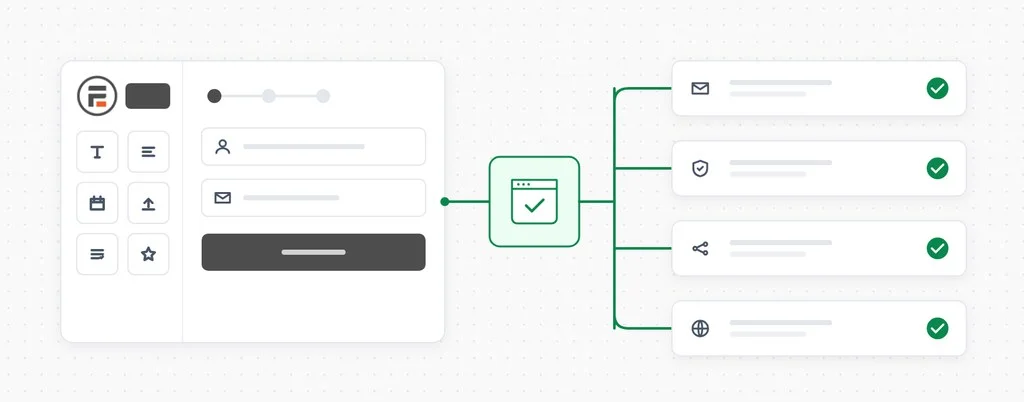
Automated testing is how you find out before your users do. CheckView fills in your Formidable form the way a visitor would, submits it, and confirms the submission went through, on whatever schedule you set.
What a scheduled form test actually verifies
Loading the page proves very little. The failures that matter show up only when something is actually submitted:
The notification never arrives. An SMTP plugin loses its connection, an API key expires, or a DNS change breaks the sending domain’s SPF or DKIM records. Formidable shows its success message and the email goes nowhere. A test that submits the form and then waits for the notification catches it.
Real visitors get blocked. CAPTCHA keys are regenerated, a Turnstile site is moved between Cloudflare accounts, or a new security plugin starts treating ordinary visitors as bots. The form looks fine and quietly turns people away.
Something else on the site changes. A theme update, a plugin conflict, or a caching and optimization plugin that rearranges scripts. Multi-page forms, calendar pickers and upload fields all depend on JavaScript, so a change with nothing to do with your form can still stop one of them working.
A scheduled test goes through the whole path from start to finish and tells you the same day when something along it changes.
What CheckView does on a Formidable test
Choose a Formidable form in CheckView and it takes care of the details:
- Automatic test generation. CheckView finds your published Formidable forms and the pages that carry their shortcode, then builds the test steps. You do not configure fields by hand.
- Test emails stay with CheckView. The recipient of each Send Email action is swapped for the CheckView test inbox during the run, and CC and BCC recipients are removed. CheckView then confirms the notification actually arrived, so email delivery is part of what is tested.
- CAPTCHA and spam checks handled for the test only. Formidable’s CAPTCHA field is removed for the CheckView session, whether it uses reCAPTCHA, hCaptcha or Cloudflare Turnstile, and the honeypot check is switched off for that session. Akismet is bypassed the same way, and CheckView also handles hCaptcha for WordPress, Simple Cloudflare Turnstile and WP Armour. Every real visitor still meets the full protection.
- Form actions paused during tests. With Disable Form Integrations During Tests turned on, CheckView skips the form’s actions for the test submission, apart from Send Email, Register User and the confirmation. Webhooks, marketing and CRM actions do not receive test data.
- Checked against the stored entry, then removed. The entry is copied, compared field by field with what the test entered, and removed from Formidable’s entries in the same request that created it. Name fields are compared part by part. Because the test entry is gone straight away, it does not show up in your entry list or in Views that read from it.
- The field types that usually cause trouble. Date fields are filled through Formidable’s calendar picker, including the inline version, and time fields are handled in 12 and 24 hour formats. Autocomplete dropdowns are filled. Uploads go through Formidable’s drag-and-drop field without opening a file dialog. Multi-page forms are worked through page by page, waiting for each page to load, and a saved draft partway through does not end the test early.
Setting it up
Formidable works the same way as every other supported form plugin in CheckView.
- Install the CheckView helper plugin on your site and keep it up to date, since Formidable handling improves with helper updates.
- Make sure the form is published. Draft forms are not listed.
- In your CheckView dashboard, open the website and click Add Test Flow.
- Choose Formidable, then pick the form and the page it appears on.
- Set a schedule. Daily suits most forms that bring in leads, sign-ups or listings.
CheckView builds the steps and runs a first test right away, so you know from the start that the form is monitored properly. Whenever you want to watch a run yourself, start one manually and CheckView records the whole submission for you to replay.
Read the Formidable Forms docs
Practical tips for Formidable sites
A few things are specific to how Formidable is built and used, and knowing them up front saves a confusing first run.
Block and page builder embeds need the URL entered once. CheckView finds a form’s page by looking for the Formidable shortcode in the page content. If you placed the form with Formidable’s block or a page builder widget, the form is still listed but its page is not. Choose the form, click Add Custom URL, enter the page path, and the test runs as normal.
Registration forms create real users. Register User is one of the actions CheckView keeps, even with integrations disabled, and the accounts it creates are not removed afterwards. For a registration form, test against a staging copy or clear out the test accounts from time to time.
Repeaters are cleaned up, not checked. Formidable stores repeater rows and embedded form fields as separate child entries. CheckView removes them along with the test entry but does not compare their values, and it does not add extra repeater rows. The rest of the form is still checked in full.
Confirmation redirects still happen. The confirmation action is not suppressed, so a form that redirects after submission does so in the test too. That is expected.
If your Formidable form does something this does not cover, a custom test flow can still monitor it, though the Formidable-specific handling above will not apply. For everything else, pick the forms your site depends on, set a schedule, and let the test tell you when something along the chain changes. Happy Testing!