
Elementor Forms Testing
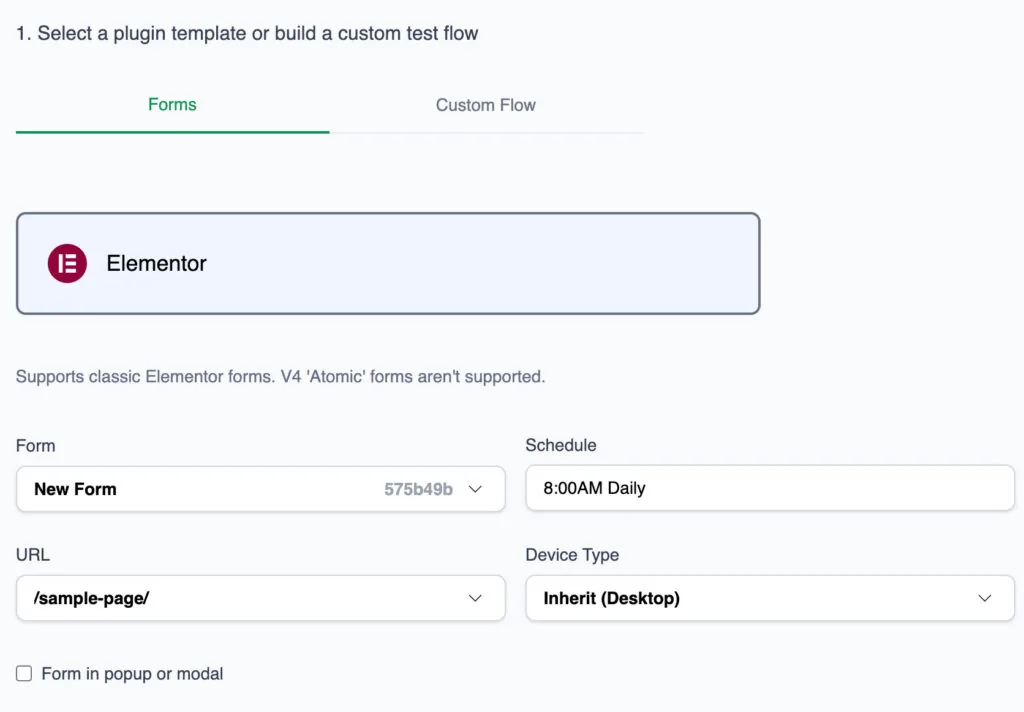
CheckView officially supports automated testing of Elementor Pro Forms built with the classic (V3) Form widget. Elementor appears as a form plugin when you create a test flow, and CheckView builds the test steps for you, no manual step configuration required.
Requirements
- Elementor Pro. The Form widget is a Pro feature. Sites running only the free Elementor plugin have no Elementor forms to test.
- The classic Form widget. Elementor V4 “Atomic” forms are not supported. See V4 Atomic forms below.
- CheckView helper plugin 2.3.0 or newer. Elementor support was added in 2.3.0. See Installing and Updating the CheckView Helper Plugin.
What CheckView does on an Elementor test
- Automatic test generation. CheckView detects your Elementor forms, finds the pages they appear on, and generates the test steps automatically.
- Email suppression. Form notification emails are redirected to the CheckView test inbox during a test run, so your real recipients never receive test submissions. CC and BCC recipients are stripped.
- Anti-spam and CAPTCHA handling. Elementor Pro’s built-in reCAPTCHA v2, reCAPTCHA v3 and Honeypot fields are skipped for CheckView test sessions only. Elementor Pro has no hCaptcha or Cloudflare Turnstile field of its own, but CheckView also handles the separate plugins that add them, along with other anti-spam plugins: hCaptcha for WordPress, Simple Cloudflare Turnstile, Akismet, CleanTalk and WP Armour Honeypot. See Automatic Disabling of Anti-Spam and CAPTCHA Plugins.
- Integration suppression. When Disable Form Integrations During Tests is on, CheckView limits the form’s submit actions to email and save-to-database, so CRM feeds, webhooks, marketing integrations, and redirects do not fire for test submissions. Save-to-database is deliberately kept so submission validation can still run. See Disable Form Integrations During Tests.
- Database submission validation. The submission is copied into the CheckView tables and verified against the values the bot entered, then removed from Elementor’s own submissions tables so your entries stay clean.
- File uploads. CheckView reads each upload field’s accepted file types and uploads a matching sample file.
- Date and time fields. Supported in both flatpickr and native HTML5 modes.
- Multi-step forms. CheckView navigates Elementor’s Next and Previous buttons automatically, including forms with custom step button labels.
Creating an Elementor test flow
Elementor works the same as any other supported form plugin. From your website dashboard, click Add Test Flow, choose Elementor, select your form and URL, set a schedule, and CheckView builds the steps. Full walkthrough: Creating a Form Test Flow.
Things to know
Give every field a unique label
Elementor stores submitted values against each field’s label rather than a field name or ID. If two fields on the same form share a label, database validation cannot tell them apart. Give each field a distinct label in the Elementor form editor.
Forms duplicated across device breakpoints
Some Elementor layouts place the same form on a page more than once, typically one copy per device type (desktop, tablet, and mobile). Automatic test generation pins each step to the correct instance, but if you are writing custom selectors by hand you may need to scope them to a single copy using Elementor’s device visibility classes:
.elementor-hidden-tablet.elementor-hidden-mobile #NameThis targets the field with the ID #Name only on the desktop copy of the form, which is hidden on tablet and mobile. Without it, a selector can match every duplicated copy on the page and the step will fail.
Redirect actions
If your form uses the Redirect submit action, the browser navigates away after submitting. When integrations are disabled during a test, the redirect is stripped and CheckView asserts against the form’s inline confirmation message instead.
V4 Atomic forms
Elementor V4 introduced a rebuilt “Atomic” form element that uses a different rendering path and a separate set of developer hooks. CheckView does not support V4 Atomic forms. If your site uses them, you can still test the form with a custom test flow, though the advanced features listed above will not apply.
Related Articles
- Creating a Form Test Flow
- Testing Supported vs. Unsupported Plugins
- Installing and Updating the CheckView Helper Plugin
Elementor is one of the builders covered by automated WordPress form testing.